Draw your own furniture, to scale
When the catalogue has no match for your piece, draw it from simple shapes, type its real size, and place it in the plan. It moves, rotates and checks for clashes like every other piece.
 Scooch is an iPhone and iPad appPoint your iPhone camera at the code to install it.
or text me the link
What it does
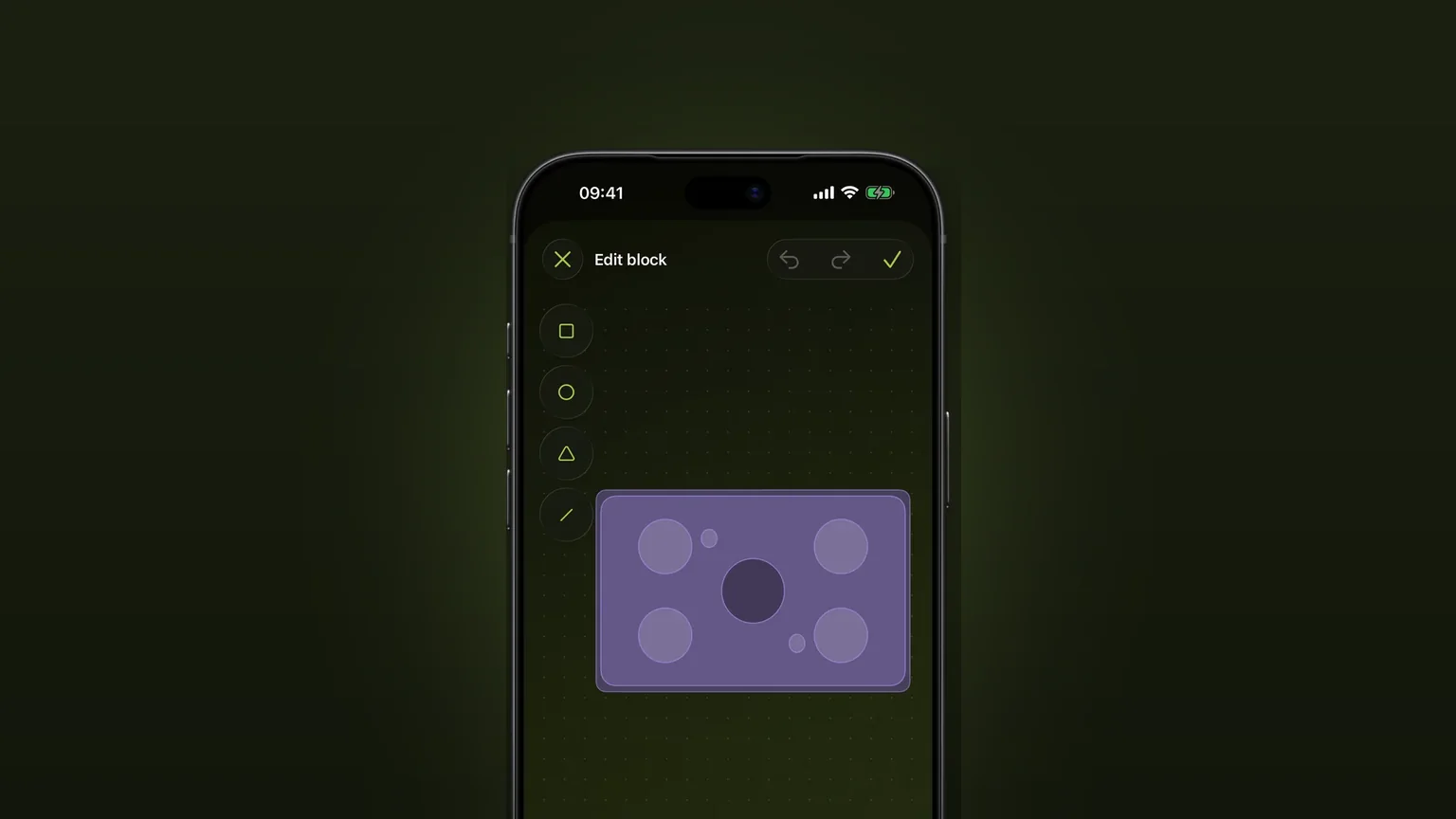
Scooch lets you draw a piece of furniture the catalogue does not have. You build it from squares, circles, triangles and lines, choose its outline, and type its width, depth and height. It then sits in your plan at that exact size and behaves like any catalogue piece.
A generic box is the usual fallback for a missing piece. A box has the right footprint but tells you nothing about what you are looking at, and a plan full of boxes is hard to read. In Scooch you can give the piece a recognisable face: the four legs of a table, the round hob of a stove, the curve of an armchair. Sketching by hand on paper has a different problem, because nothing in it is to scale. Here the drawing is the size you typed.
For the pieces that do exist, see furniture at real sizes. This page covers the ones that do not.
How it works
- In the plan, tap Add Furniture to open the furniture list.
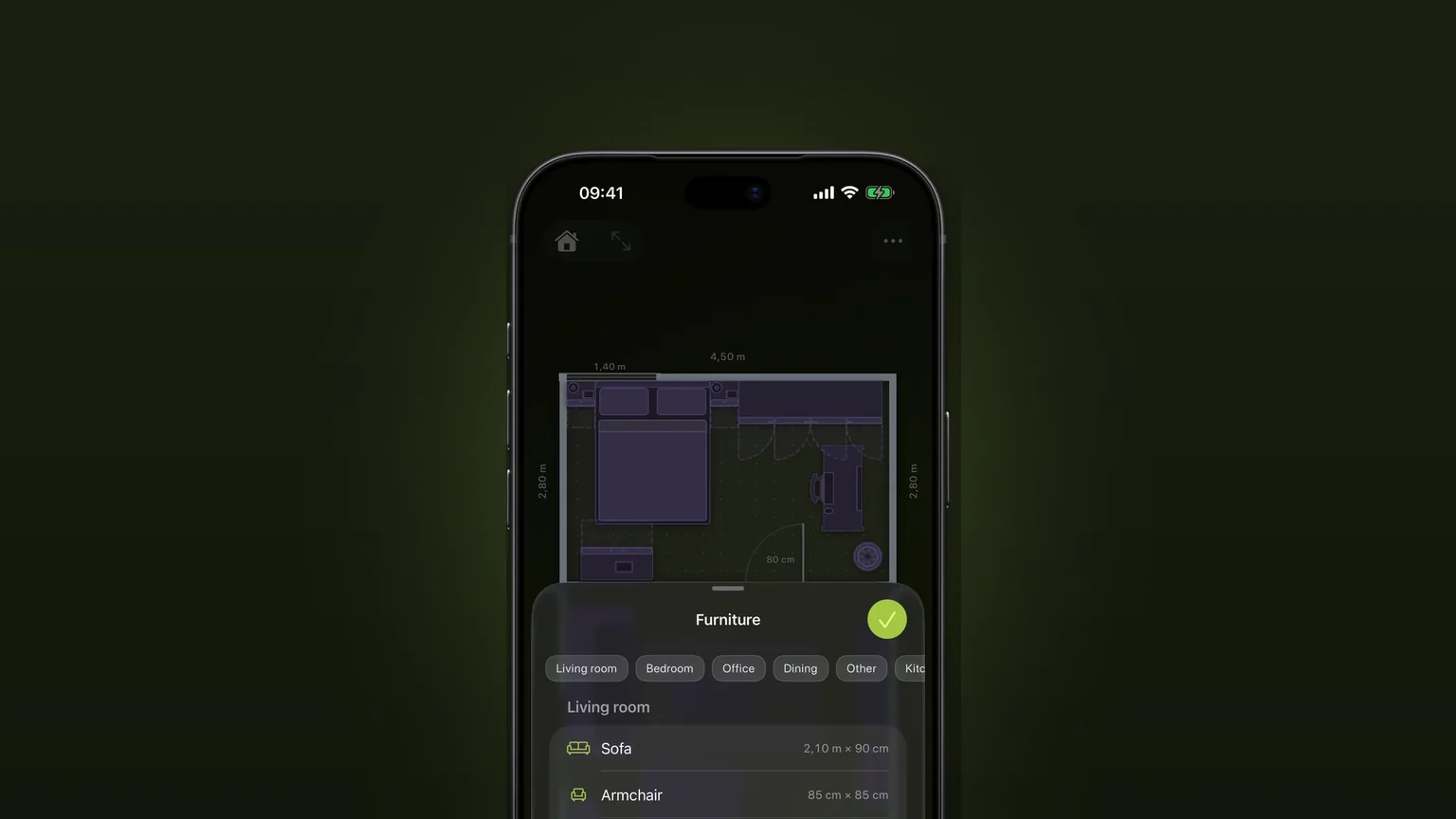
- Scroll to the last section, Drawn by you. It is always there, even when empty. Tap Add custom block.
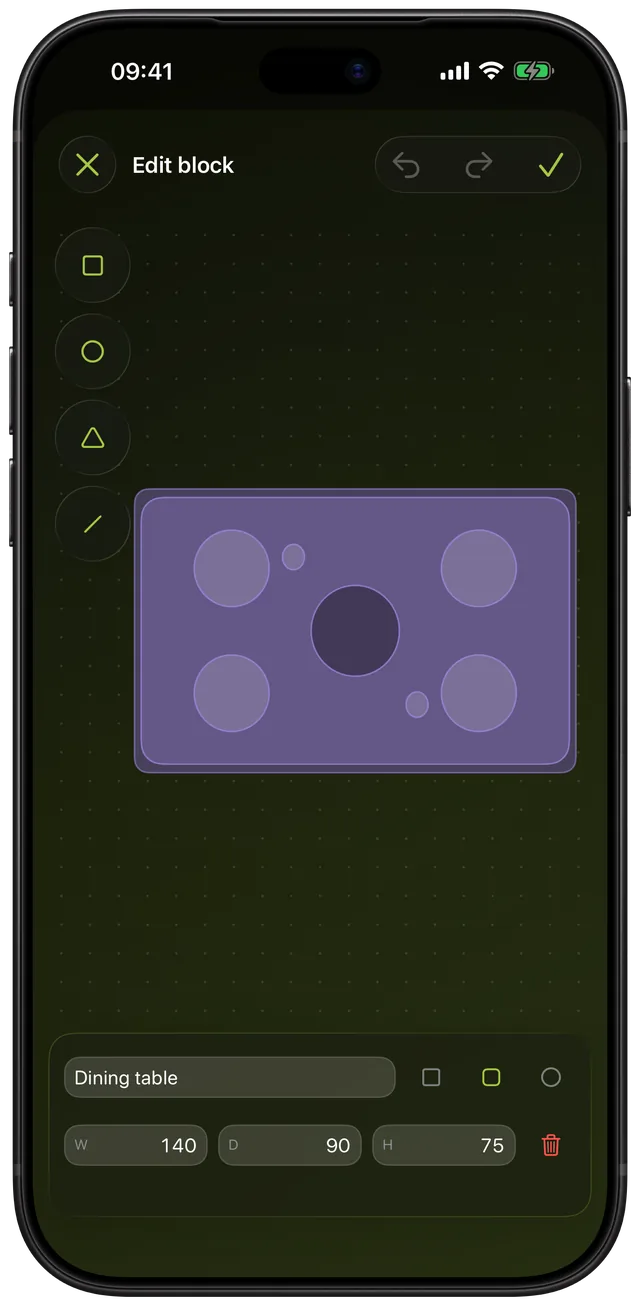
- Tap a shape button on the left rail to add a shape: square, circle, triangle or line. It lands near the middle of the block, already selected.
- Drag the shape to move it. Drag the round handle on its lower right corner to resize it. Drag empty canvas to pan the view, and pinch to zoom.
- With a shape selected, a bar appears with three shade swatches (light, medium and dark), an outline switch and a bin for deleting that shape.
- Type a name, pick the footprint outline, then fill in W (width), D (depth) and H (height). Tap Done on the number pad to apply them.
- Tap the checkmark at the top right to save. The checkmark stays off until the block has at least one shape.
- Back in the list, tap the new row to place the block in your plan. Tap the pencil beside it later to edit or rename it.
The drawing is stored as fractions of the footprint. If you change the size afterwards, the drawing scales with it instead of ending up stranded in a corner. Sizes follow the unit you chose in Settings, metric or imperial.
Every option
| Setting | Choices | Notes |
|---|---|---|
| Shape | Square, Circle, Triangle, Line | Add as many as you like. A new shape fills 40% of the block, a line 60% across. |
| Shade | Light, Medium, Dark | The colour comes from your active theme, so a drawn piece matches the rest of the plan. |
| Shape outline | On or off | Per shape, toggled with the dashed square button. |
| Footprint outline | Square, Rounded, Round | Square has sharp corners, Rounded has softened corners, Round is an ellipse. |
| Width and depth | 5 cm or more | Typed. No upper limit. A new block starts at 80 by 40 cm. |
| Height | 1 cm or more | Typed. A new block starts at 80 cm. |
| View | Zoom, pan, reset | Pinch from 0.4 times to 8 times. A reset button appears once you move the view. |
| Undo and redo | Up to 50 steps | A whole drag counts as one step. |
Anything below the minimum shakes the field and shows why. When you edit a saved block, the bin next to the size fields deletes the whole block. A block you deleted leaves the pieces already in your plans in place: they keep their size, height and label and lose only their drawing.
A drawn block is saved in your library, not in one plan. Draw your sofa once and place it in every plan you make.
When to use it
A piece nobody sells in a standard size
A built-in bench, a desk made from a worktop, a corner cabinet cut to the wall. Measure it with a tape, type the numbers, and the plan has the real thing. The measuring guide covers how to take those numbers.
Something round or oddly shaped
Choose the Round footprint for a round table or a pouffe, then add circles or triangles for the detail. A recognisable drawing helps you read the plan at a glance.
Furniture you are thinking of buying
Take the width, depth and height from the shop listing, name the block after the product, and place it before you pay. For a sofa, the standard sofa dimensions give you a range to compare against.
Gym kit, instruments and hobby gear
A rowing machine, a drum kit footprint or a sewing table is not in a furniture catalogue. A single rectangle with the right size is enough to know whether the corner of the spare room works.
Something already in the catalogue, but yours is different
If a catalogue piece is nearly right, you can usually type a different size on it instead. Draw your own only when the look or the proportions are far off.
Limits
- It is a top-down drawing. You build the piece from four flat shapes in three shades. There are no curves you can bend, no freehand pen and no photo import.
- No open-state options. Catalogue doors, drawers and sofa beds can show their swing or pull-out. A drawn block has none of those, so use room to open with catalogue pieces.
- Always solid. A drawn block does not tuck under a desk or sit on a counter the way a catalogue chair or sink can. In clash detection it counts as a full floor to height piece.
- Clashes use the full rectangle. A Round table is tested as its width by depth box, so a corner can flag where the curve itself would clear.
- No rotation inside a block. The editor has no rotate control for individual shapes. Rotate the whole piece once it is in the plan.
- Needs iOS 26 or later. Apple's current release is iOS 27.2, so any recent iPhone qualifies. Drawing is not a separate purchase: it comes with the app's one-time unlock.
Frequently asked questions
How do I draw a couch in a floor plan?
Open Add Furniture, scroll to Drawn by you and tap Add custom block. Add a rectangle for the seat and back, add shapes for the arms and cushions, then type the width, depth and height. Save it and place it in the room.
Can I draw furniture to scale on iPhone?
Yes. You type the real width, depth and height in centimetres or inches, and the piece appears in the plan at that size. If you change the size later, the drawing scales with it.
Do I need to draw every detail?
No. A single rectangle with the right size and a name is enough for the fit check. Extra shapes only make the piece easier to recognise on the plan.
Can I use a custom piece in more than one plan?
Yes. Drawn blocks live in your library, not in one plan, so every plan you make can place them.
What happens if I delete a custom piece?
Pieces already placed in your plans stay where they are with the same size, height and label. They lose only their drawing and become plain labelled rectangles.
Sources
Draw the piece that is missing
Get Scooch on the App StoreMore features
Will it fit? Clash detection that turns red
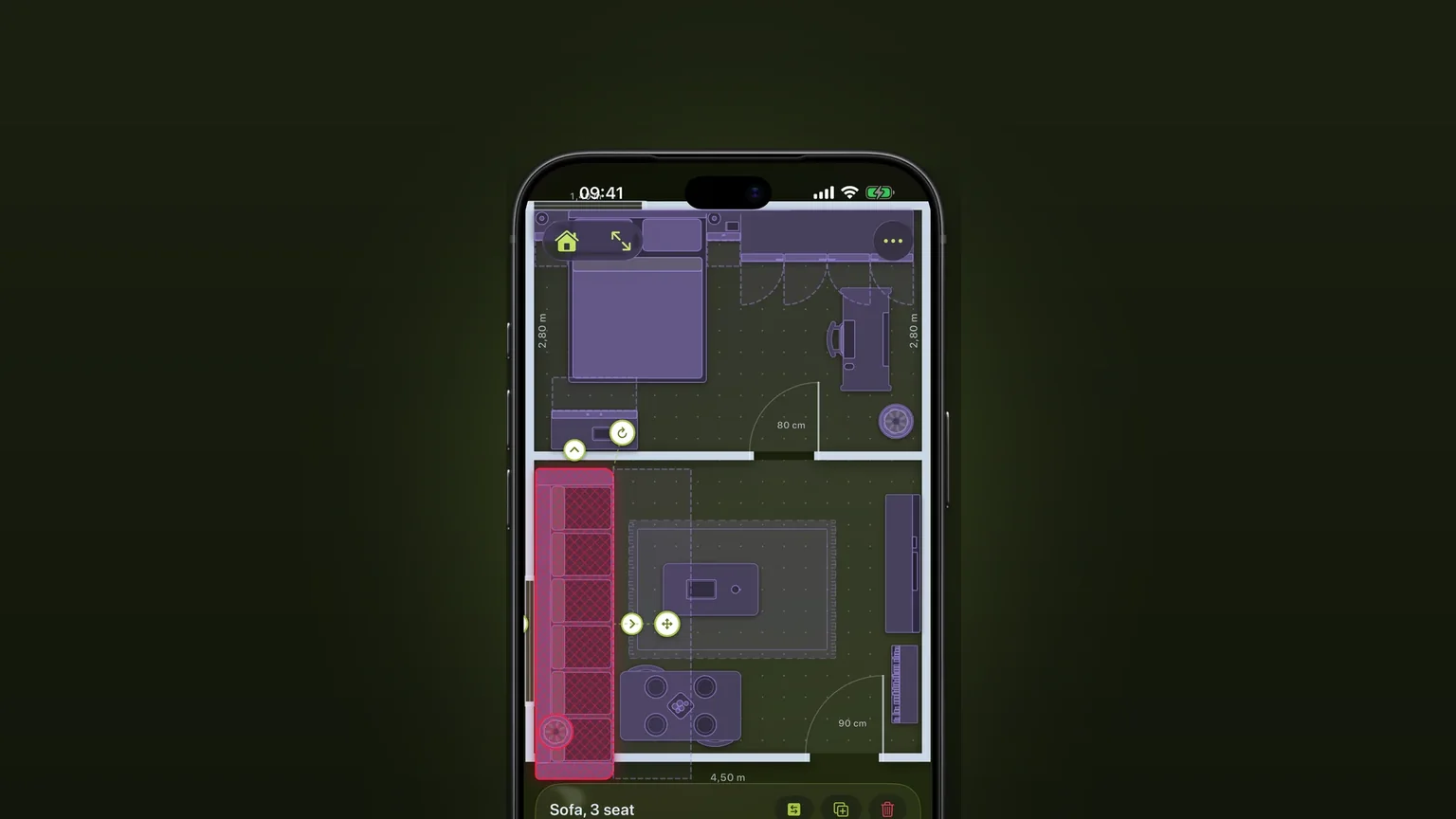
A piece that overlaps another, sticks out of the room or stands where a door or drawer has to open turns red as you move it.
Corner sofas and sofa beds
One L-shaped piece with its own depth on each side, and a sofa bed that pulls out to the corner.
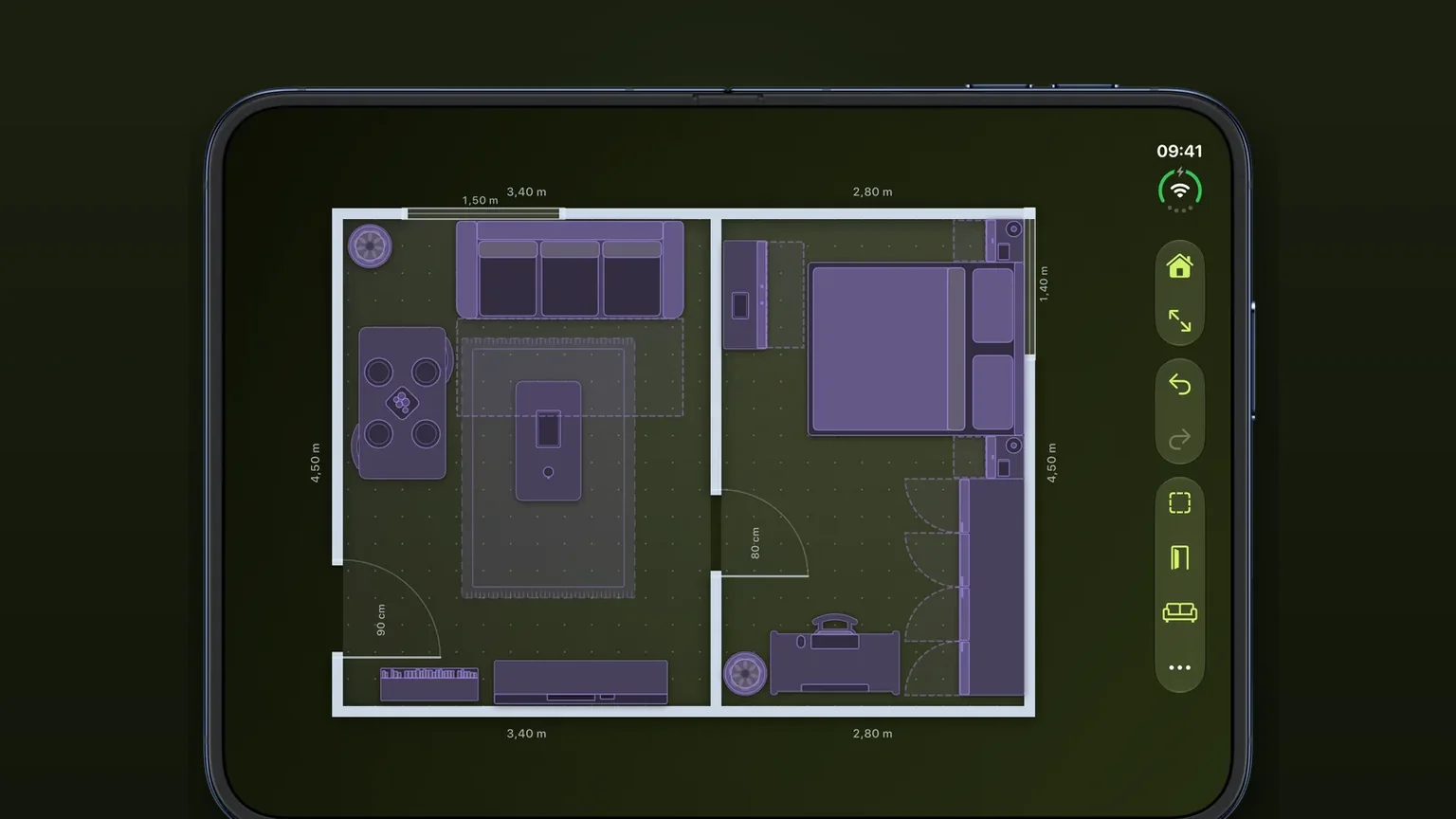
Doors, windows and arches with swing arcs
Doors, windows and arches slide along any wall at their real width, and every door draws the arc it needs to open.